
1. Introduction
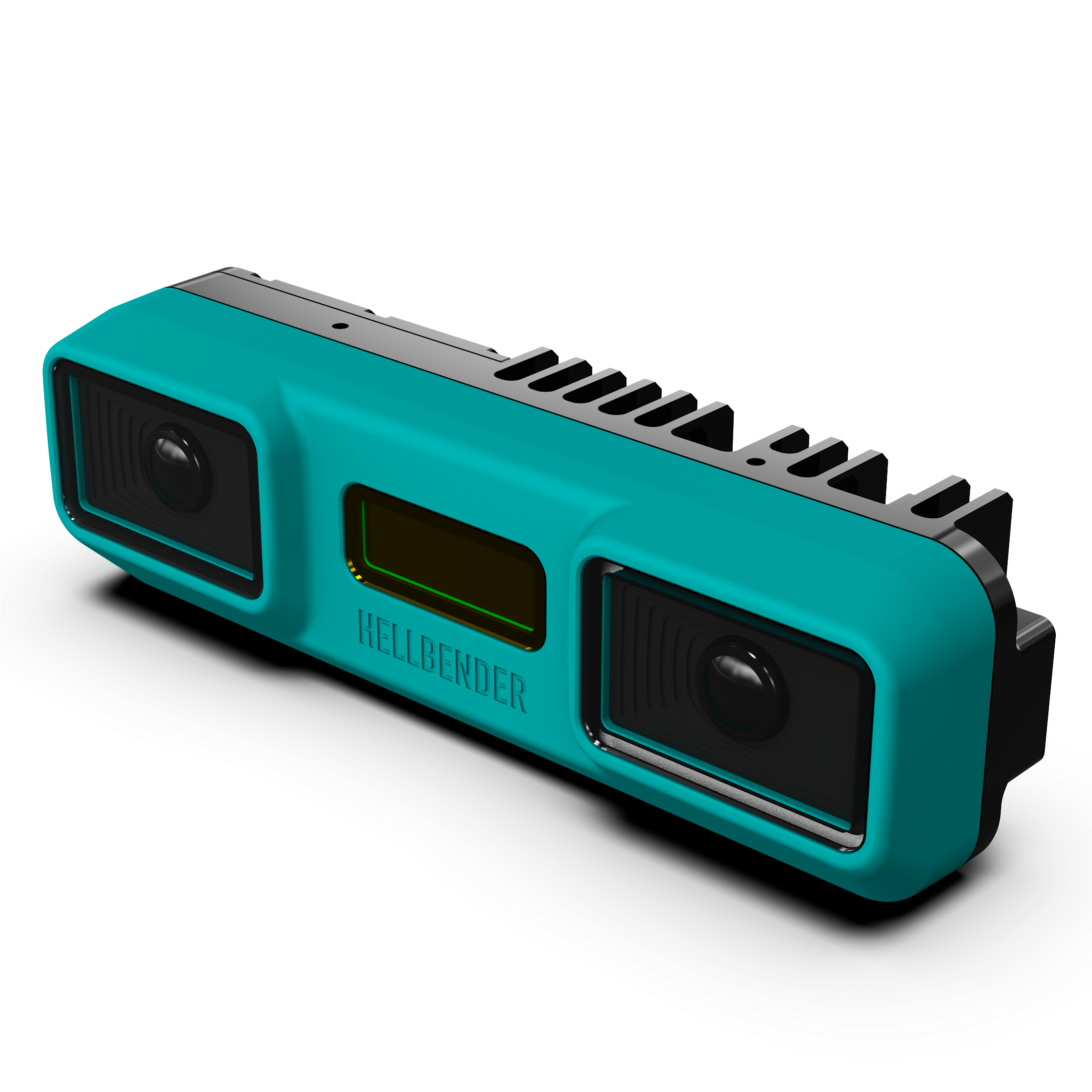
The Hellbender Stereo Camera is a fully programmable depth perception module combining a Raspberry Pi CM5 and Hailo-8 accelerator. It is capable of single-handedly empowering advanced industrial and robotic applications.
Key features include:
-
Gigabit Power over Ethernet (PoE)
-
User programmable quad core ARM Cortex-A76 processor
-
Hailo-8 accelerator with 26 TOPS
-
Near infrared flood illumination and pattern projection for low light and feature-poor environments
-
Time-synchronized on-board IMU
-
Environmental sensor with temperature, pressure, and relative humidity
-
12VDC pass through power supply for peripheral sensors and actuators
This device was engineered and built in Pittsburgh, PA.
1.1. Specifications
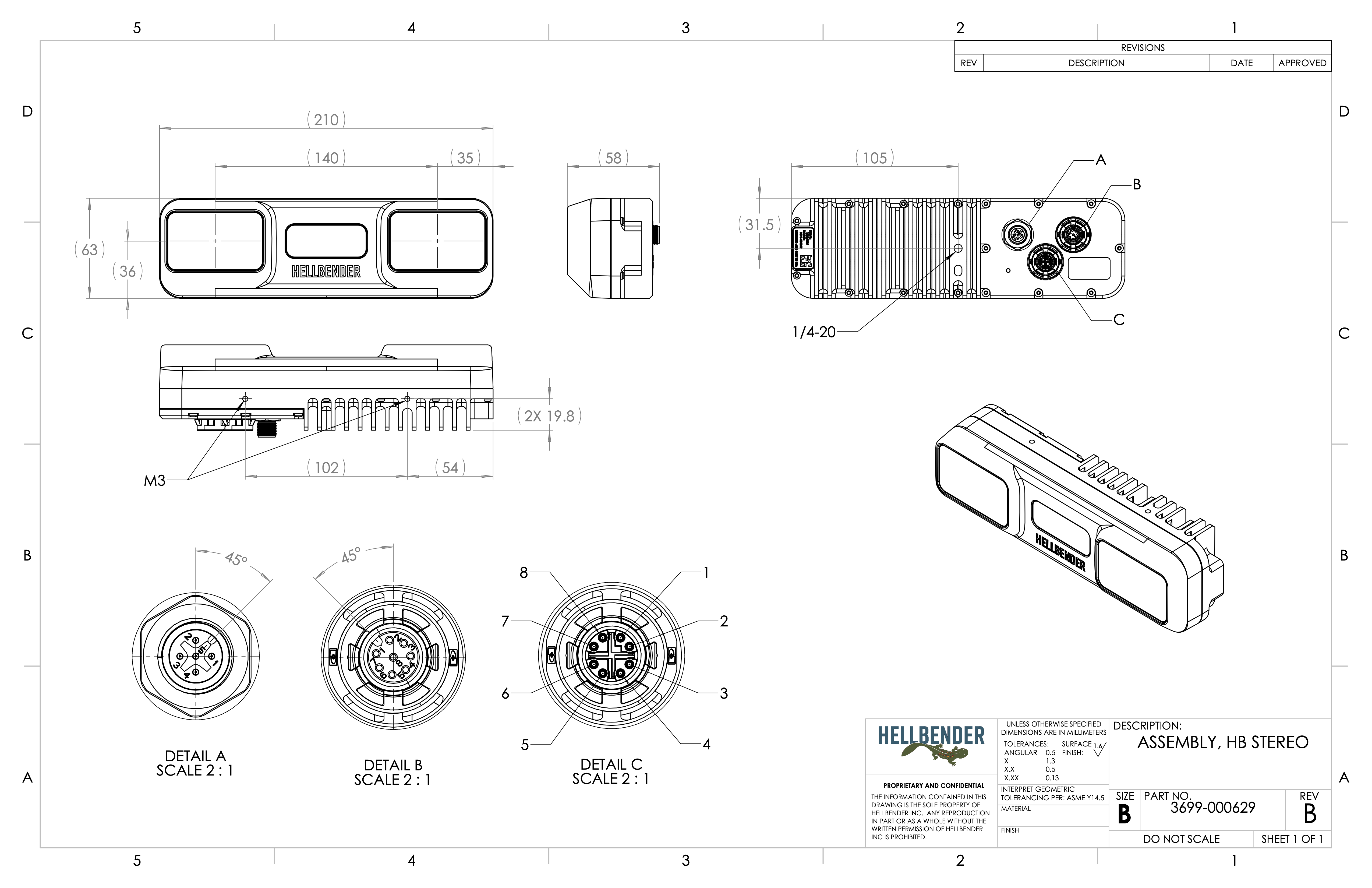
Dimensions |
680 g |
Power |
PoE++ > 15W |
Compute |
Raspberry Pi CM5 Quad Core Cortex-A76 @ 2.4GHz (16GB RAM, 64 GB eMMC) |
Electrical Interface |
M12 X-Code Gigabit PoE++ (female) |
Mechanical Interface |
2x Bottom 1/4-20 Mounting Points |
Wireless Network |
2.4 GHz and 5.0 GHz IEEE 802.11 b/g/n/ac Wi-Fi |
Optical |
140mm Baseline |
Illumination |
850nm Flood Illumination |
Miscellaneous |
Onboard EEPROM (8kbit), programmable by I2C |
Environment |
IP67 Assembly |
2. Quick Start
2.1. What’s in the Box
The Hellbender Stereo Camera comes with the following items:
-
Hellbender Stereo Camera
-
M12 to RJ45 Gigabit Ethernet cable
-
Power over Ethernet (PoE) Injector
To connect to the Stereo Camera, you’ll also need an Ethernet cable to connect your host computer to the Stereo Camera via the PoE Injector.
| The Hellbender Stereo Camera ships with a PoE+ injector, however it is compatible with PoE++. |
2.2. System Setup
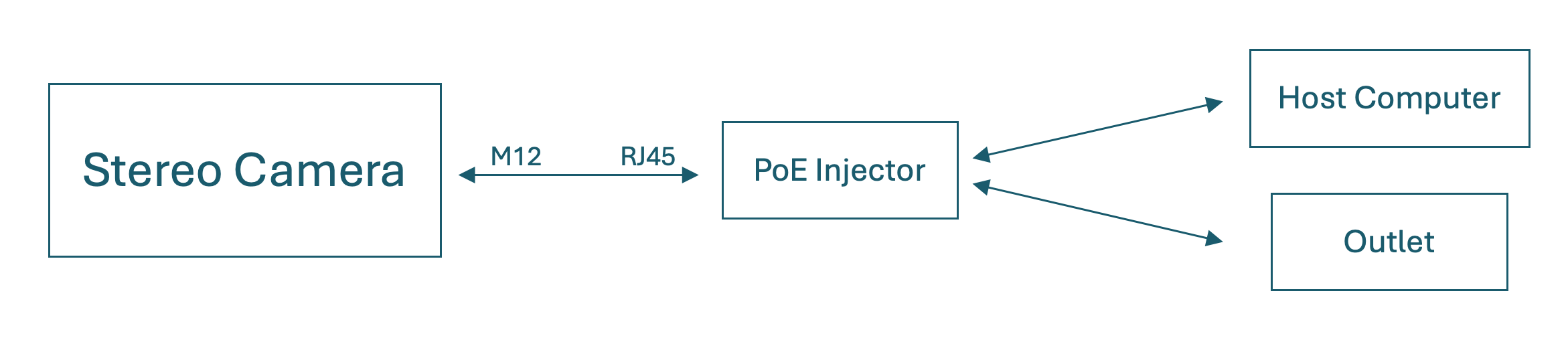
The Stereo Camera receives both power and data from the Ethernet cable included in the box. To begin working on the Stereo Camera, follow these steps:
-
Connect the Stereo Camera and PoE injector using the provided M12 to RJ45 cable; this cable will only fit into the lower middle connector on the back of the Stereo Camera.
-
Connect the PoE injector to an outlet to supply power to the Stereo Camera and turn it on. Once connected to power, the LED on the back of the device will turn yellow first, then green once fully booted.
-
Connect the host computer to the remaining RJ45 port on PoE injector using a standard Ethernet cable
Your setup should follow the system diagram below:
2.3. Connect
The Hellbender Stereo Camera has a static IP address of 10.72.98.127/8. To establish a direct connection, configure your computer’s network interface to a unique IP address on the same subnet (e.g., 10.72.98.100) with a subnet mask of 255.0.0.0. If your host is connected to the Stereo Camera over a network or corporate switch, see the Network Access section for more information.
On Mac: Navigate to System Settings > Network > Ethernet (USB 10/100/1000 LAN) > Details… > TCP/IP, and use the dropdown next to 'Configure IPv4' to select 'Manually' and enter the IP address and subnet mask above.
On PC: Navigate to Settings > Network & internet > Ethernet, and click the edit button next to 'IP assignment.' Change the dropdown to Manual and toggle on IPv4 before entering the information above.
To confirm a connection, open a terminal and enter ping 10.72.98.127. You should see responses similar to those shown below:
HOST % ping 10.72.98.127
PING 10.72.98.127 (10.72.98.127): 56 data bytes
64 bytes from 10.72.98.127: icmp_seq=0 ttl=64 time=1.910 ms
64 bytes from 10.72.98.127: icmp_seq=1 ttl=64 time=0.549 ms
64 bytes from 10.72.98.127: icmp_seq=2 ttl=64 time=0.492 ms
64 bytes from 10.72.98.127: icmp_seq=3 ttl=64 time=0.801 ms
2.4. Log In
Log in to the Hellbender Stereo Camera using SSH and the password on the label inside the original box:
ssh hellbender@10.72.98.127
Password:
Immediately after logging in, change the password from its default to something more secure using the passwd command:
$ passwd
Changing password for hellbender.
Current password:
New password:
Retype new password:
passwd: password updated successfully
2.5. View ROS Output
Each Hellbender Stereo Camera comes pre-loaded with a ROS 2 application. To start the application and view available topics, follow the steps below:
-
Download (documentation Foxglove) and sign up for a free account.
-
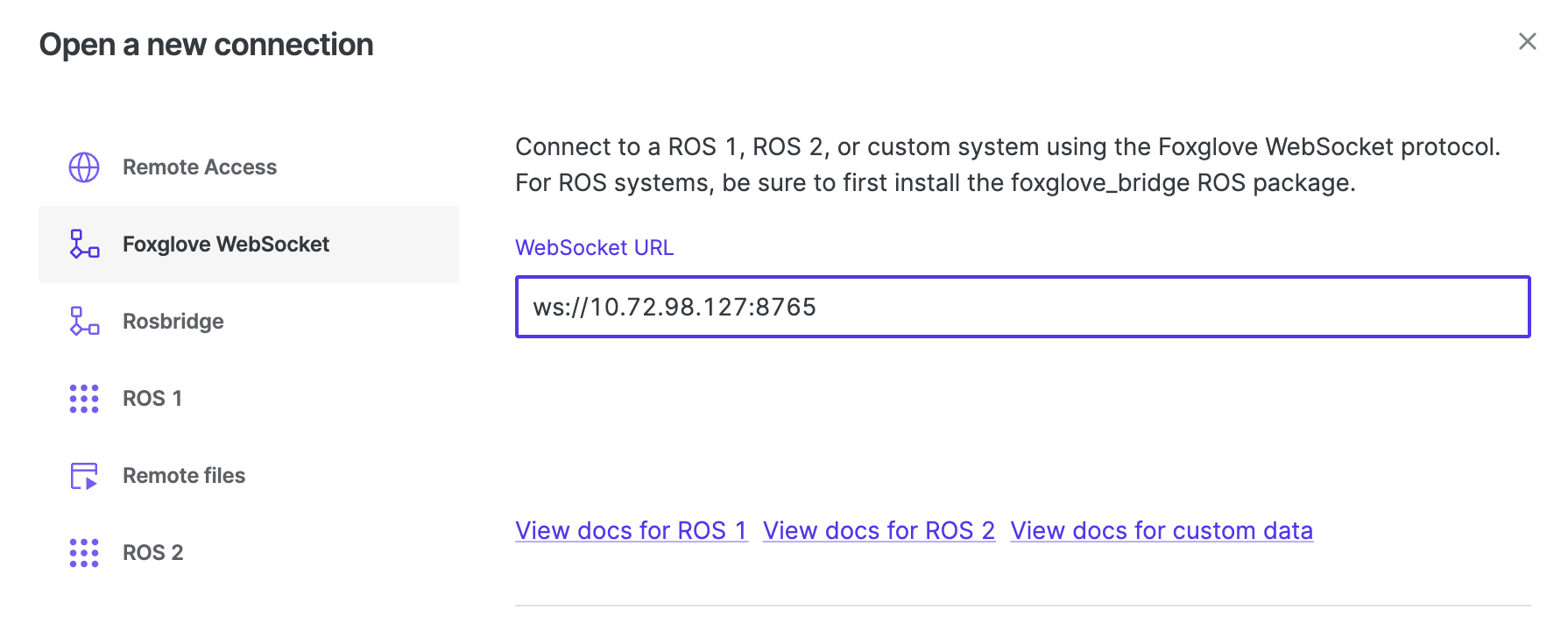
Open Foxglove, navigate to the dashboard, and click 'open connection.' Make sure 'Foxglove WebSocket' is selected, and update the WebSocket URL to ws://10.72.98.127:8765, as shown below:
-
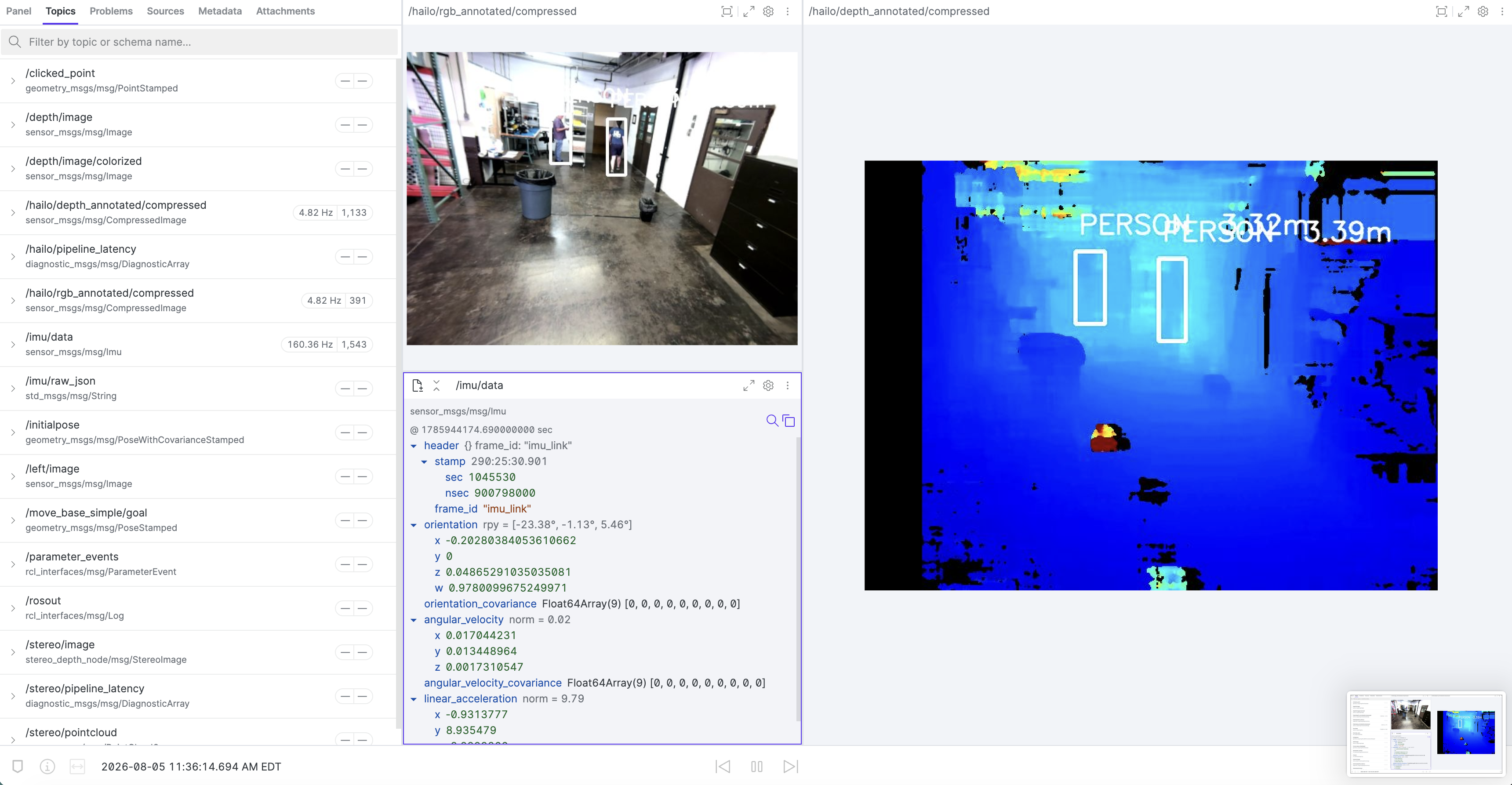
Once you’ve connected, navigate to 'Topics' in the left hand panel to see a list of all available ROS 2 topics to visualize from within Foxglove. These ROS 2 topics are produced by the stock example application pre-loaded onto the Stereo Camera.
3. Hardware
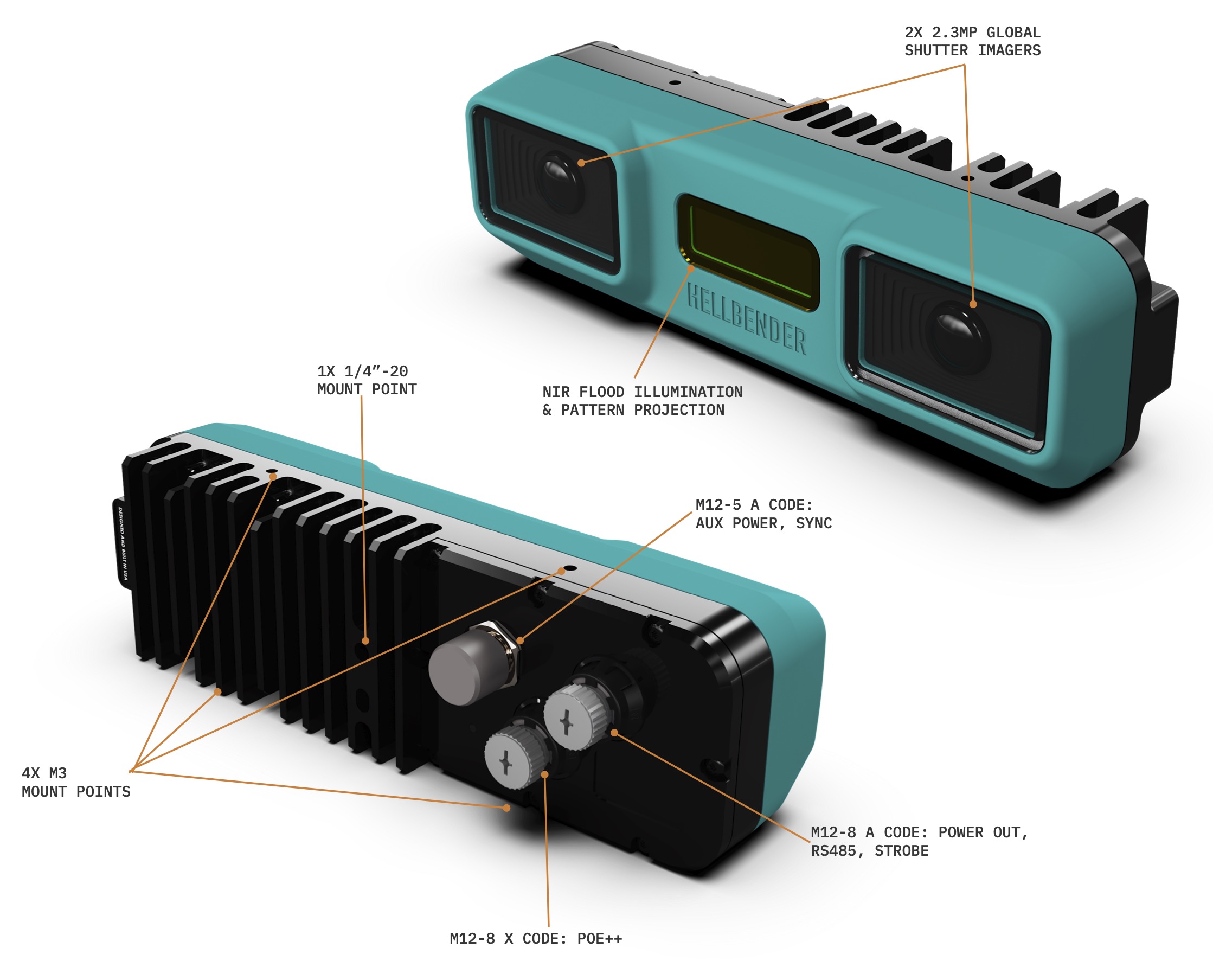
The Hellbender Stereo Camera comes in two variants - Daylight and IR. The Daylight Stereo Camera has no IR functionality and filters out IR light from each image, resulting in a 'true color' image feed. The IR Stereo Camera does not filter out IR wavelengths, and includes IR flood illumination and pattern projection.
3.2. Connectors
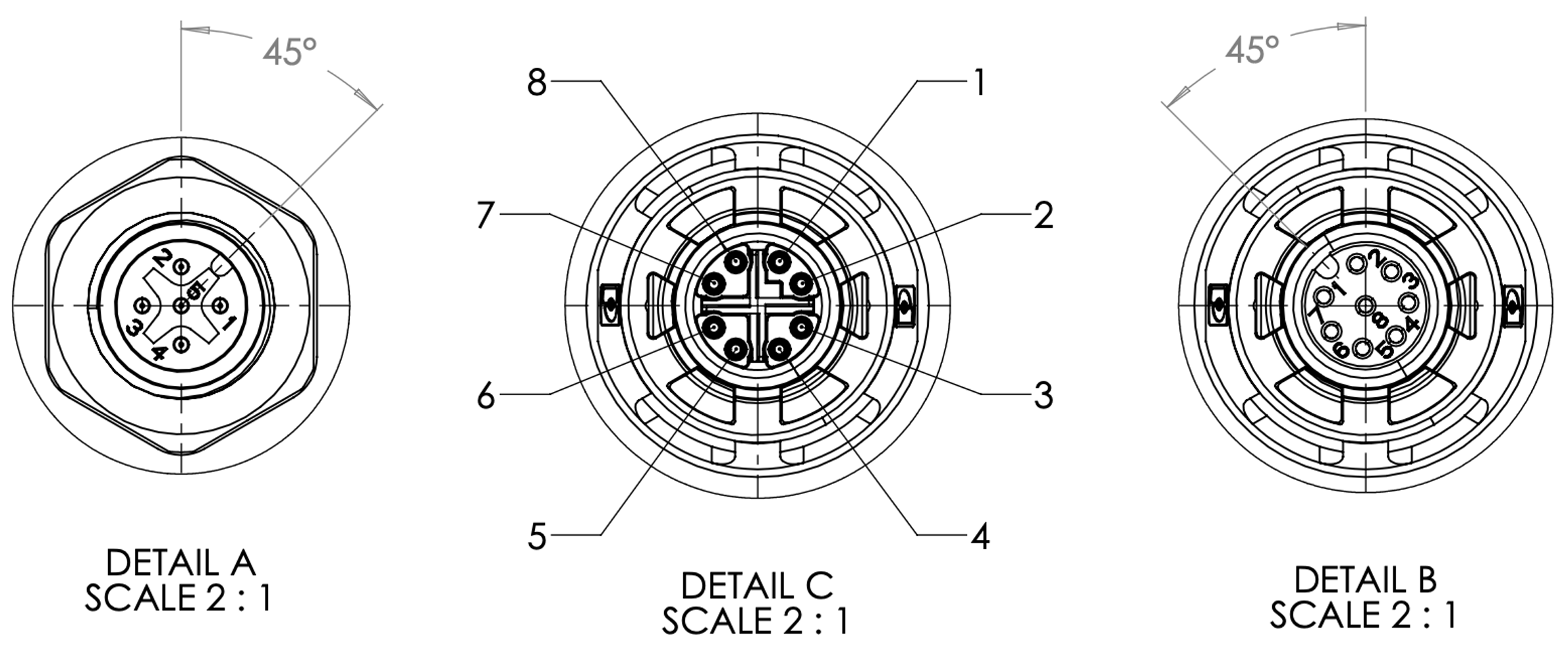
The Hellbender Stereo Camera has three connectors on its rear face. From left to right, when looking at the rear face:
-
One 5-pin male A-Code M12 connector for external power and synchronization
-
One keyed female X-Code M12 connector for Gigabit PoE (see below for key orientation between pins 1 & 2)
-
One 8-pin female M12 A-Code connector to provide power to peripheral sensors and actuators
| Pin | Signal |
|---|---|
1: DC+ |
12V – 24V |
2: DC- |
PWR GND |
3: EXT RST |
Hard Power Reset |
4: FSYNC |
Isolated Sync Trigger |
5: FSYNC GND |
Isolated Sync GND |
| Pin | Signal |
|---|---|
1: TxRx A+ |
TxRx+ |
2: TxRx A- |
TxRx- |
3: TxRx B+ |
TxRx+ |
4: TxRx B- |
TxRx- |
5: TxRx D+ |
TxRx+ |
6: TxRx D- |
TxRx- |
7: TxRx C+ |
TxRx+ |
8: TxRx C- |
TxRx- |
| Pin | Signal |
|---|---|
1: VOUT+ |
12V – 24V Passthrough |
2: VOUT- |
PWR GND |
3: RS485 Tx+ |
RS485 Tx+ |
4: RS485 Tx- |
RS485 Tx- |
5: RS485 Rx+ |
RS485 Rx+ |
6: RS485 Rx- |
RS485 Rx- |
7: STB |
Isolated Strobe Trigger |
8: STB GND |
Isolated Strobe GND |
| Trigger, Strobe, and RS485 are not implemented in the initial release of firmware for The Hellbender Stereo Camera |
3.3. Power
The Hellbender Stereo Camera requires a minimum of 15 W to operate, but can accept up to 60W in order to provide passthrough power to peripheral devices. It can accept power through the PoE X-Code M12 port, as shown in System Setup, or via a custom cable connected to the 5-pin A-Code M12 port.
3.4. Mounting
The Hellbender Stereo Camera has one 1/4-20 mounting point and locator pinhole on its rear face, as well four M3 holes - two on the top and two on the bottom. When mounting the device, it is important to not inhibit airflow around the heat sink to allow for optimal passive cooling.
3.5. Materials
The Hellbender Stereo Camera’s exterior is comprised of several materials:
-
The front housing is made of a UV-stabilized, non-brominated/non-chlorinated, flame retardant polycarbonate/ABS blend (PC/ABS)
-
The rear heatsink is made of black anodized 6061-T6 aluminum
-
The rear connectors are nickel-plated zinc with PA66 sleeves
4. Software
4.1. Network Access
If the Stereo Camera is connected to a network with an active DHCP server (e.g. a router or corporate switch), it will automatically request and receive an IP address. To retrieve this IP address, access your router’s web interface and view the DHCP Client List, or DHCP Pool. The Stereo Camera will have a hostname of cm5-4602-000156-XXXXXXXX, where XXXXXXXX is an 8 digit hexadecimal ID.
Note: Even when using DHCP, the static IP address remains accessible on the same interface.
| Changing the network configuration incorrectly can render the system inaccessible. Review any changes very carefully before power cycling the unit after making changes to the network configuration. |
4.2. Software Updates
4.2.1. View Software Version
To view the current software version, use a browser to navigate to port 5000, so if using the static IP address, navigate to http://10.72.98.127:5000.
4.2.2. Update Software Version
Software updates on the Hellbender Stereo Camera update the operating system, but leave user files untouched. To update the Stereo Camera’s software, follow the steps below:
-
Download the update you wish to install to your local machine from Hellbender’s Stereo Camera GitHub repository
-
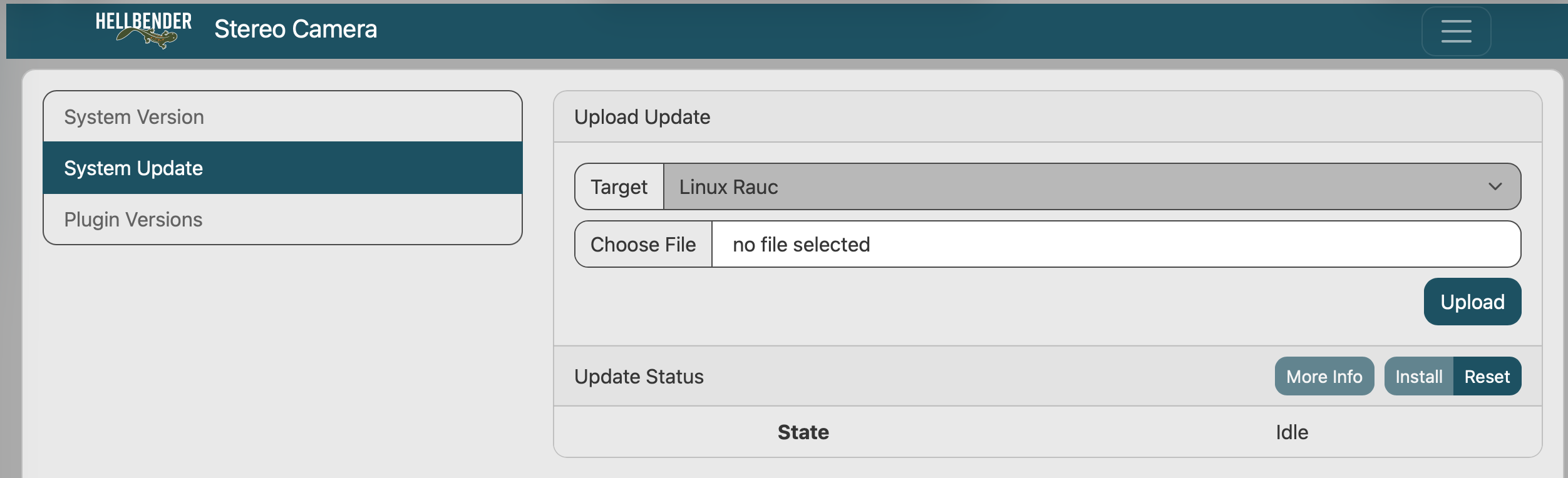
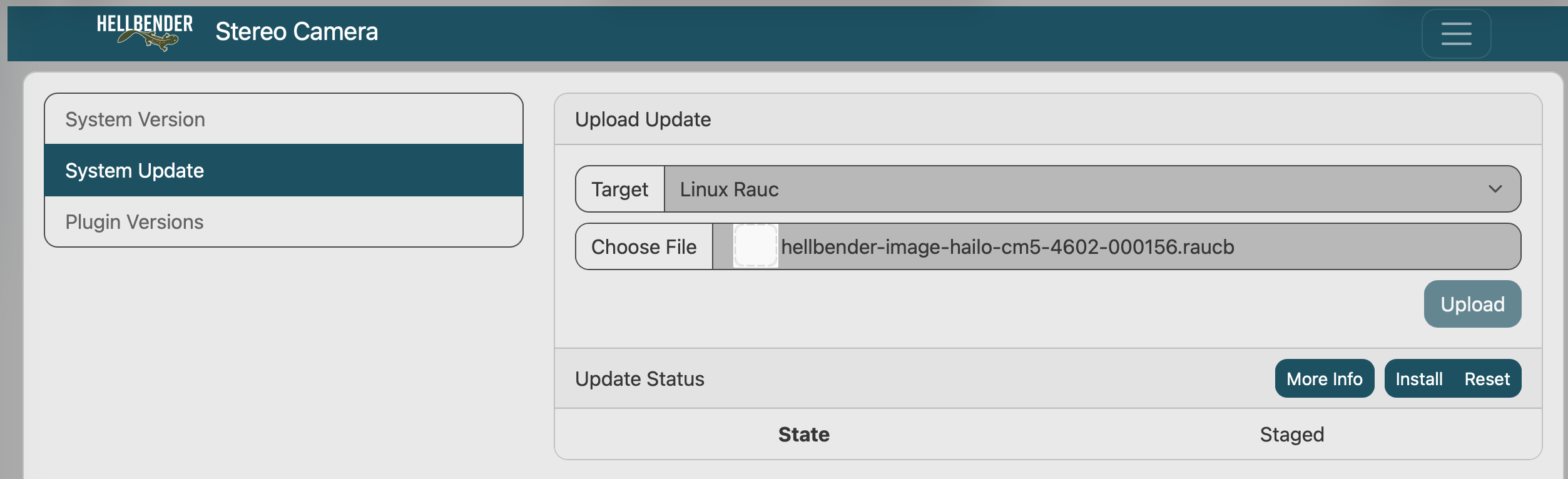
Navigate to the 'System Update' panel on the status page - http://10.72.98.127:5000
-
Click 'Choose File' to select the update file, and click 'Upload.' The 'State' underneath 'Update Status' will read as 'Staged'
-
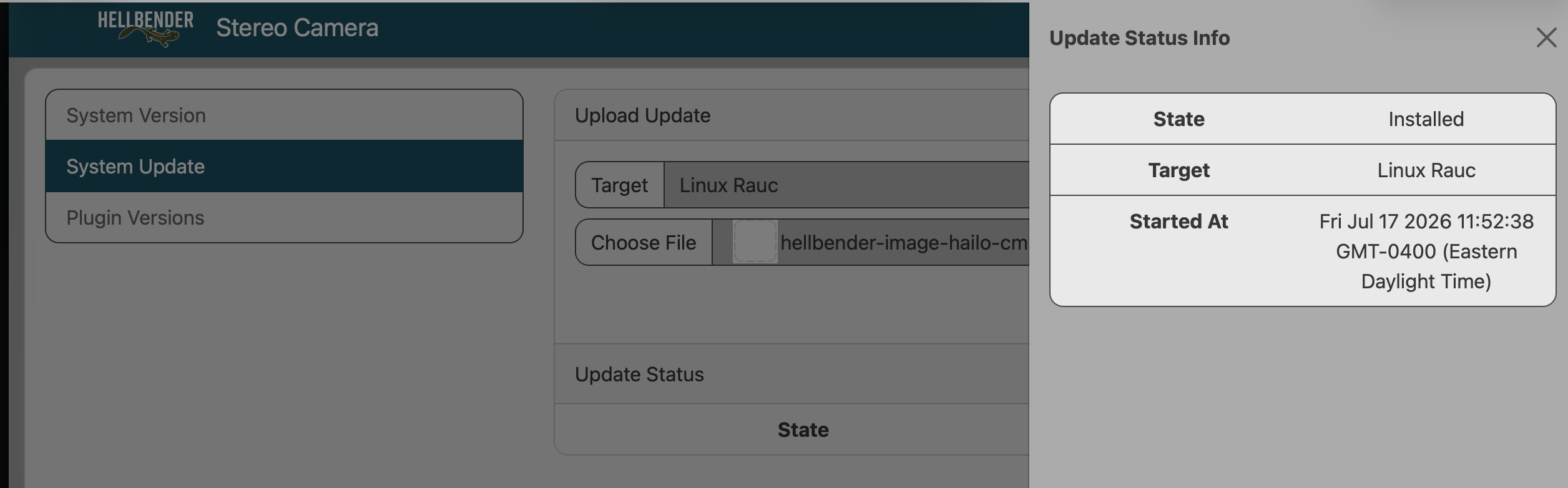
Click 'Install' to begin update. Once completed, you can view the update information by clicking 'More Info' as shown below. Click 'Reset' to clear current progress or any errors when the device is in the Idle, Staged or Failed state.
4.3. Docker
Deploy software on the Hellbender Stereo Camera using Docker containers to separate client application dependencies from the device’s base operating system. To facilitate this, the Stereo Camera’s base operating system includes Docker support and a Linux 6.6 kernel.
If the Stereo Camera is directly connected to the internet, executing the standard docker commands given (documentation here) will work. For instructions on operating without a direct internet connection, see below.
This OS version of The Hellbender Stereo Camera does not support the docker exec command. Future releases of the Stereo Camera OS image will support this command.
|
4.3.1. Loading Images
Without a direct internet connection to the Stereo Camera, users will have to download images on a connected computer and then copy it to the device using the scp command. The example below pulls an FTP server Docker container and loads it onto the Stereo Camera. Note the use of the platform identifier to pull the correct Docker image for the target:
Host Computer:
docker pull --platform linux/arm64 delfer/alpine-ftp-server

docker save -o ftp.docker delfer/alpine-ftp-server

scp ftp.docker hellbender@<ipaddress>:~/
Stereo Camera:
cm5-4602-000156-0fce3ccd:~$ sudo docker load -i ftp.docker
Password:
d4fc045c9e3a: Loading layer [==================================================>]  7.667MB/7.667MB
61efe53b0b67: Loading layer [==================================================>]  78.34kB/78.34kB
b620626224d8: Loading layer [==================================================>]  1.395MB/1.395MB
1589a0508217: Loading layer [==================================================>]  4.608kB/4.608kB
6e9e82b5407d: Loading layer [==================================================>]  6.144kB/6.144kB
Loaded image: delfer/alpine-ftp-server:latest
4.3.2. Running Containers
The code below shows an example of the Docker command used to run a hardware stress test utility, stress-ng, after executing the command to pull the Docker image containing the utility.
sudo docker run -it --rm alexeiled/stress-ng --cpu 2 --io 2 --vm 1 --vm-bytes 128M --timeout 60s --metrics-brief
stress-ng: info: [1] dispatching hogs: 2 cpu, 2 io, 1 vm
stress-ng: info: [1] cache allocate: using built-in defaults as no suitable cache found
stress-ng: info: [1] successful run completed in 60.12s (1min, 0.12 secs)
stress-ng: info: [1] stressor bogo ops real time usr time sys time bogo ops/s bogo ops/s
stress-ng: info: [1] (secs) (secs) (secs) (real time) (usr+sys time)
stress-ng: info: [1] cpu 4261 60.11 103.04 0.57 70.89 41.13
stress-ng: info: [1] io 202378 60.00 0.94 32.66 3372.92 6023.15
stress-ng: info: [1] vm 533956 60.03 49.70 2.92 8894.64 10147.40
Note that all arguments after alexeiled/stress-ng are application specific, as are the subsequent printed logs.
4.3.3. Confirm Docker is Running
After running a Docker image, you can confirm the Docker daemon is running using systemctl:
cm5-4602-000156-0fce3ccd:~$ sudo systemctl status docker | head -n6

docker.service - Docker Application Container Engine
     Loaded: loaded (/usr/lib/systemd/system/docker.service; disabled; preset: disabled)
     Active: active (running) since Wed 2024-10-09 15:20:06 UTC; 16min ago
    TriggeredBy: docker.socket
       Docs: https://docs.docker.com
   Main PID: 974 (dockerd)
To confirm your container started, use docker ps:
$ docker ps4.4. Device Interfaces
4.4.1. Get Imager Data
The Hellbender Stereo Camera’s Image Signal Processing (ISP) chip combines both imager outputs into a single time-synchronized image before passing it to the operating system. The ISP output is available from "/dev/video0".
Using GStreamer, it is possible to get the image stream and crop the video to only include the "right" images using the following pipeline:
sudo gst-launch-1.0 -vvv v4l2src device=/dev/video0 ! video/x-raw, framerate=30/1, width=3840, height=1200, format=UYVY ! videocrop left=1920 right=0 top=0 bottom=0 ! < More Pipeline elements here >While the above command requires editing to save or send the stream somewhere, the below example saves an image from each imager to 'right.png' (by cropping out the left image) and 'left.png' (by cropping out the right image):
gst-launch-1.0 v4l2src device=/dev/video0 ! video/x-raw, framerate=1/1, width=3840, height=1200, format=UYVY ! tee name=t t. ! videocrop right=1920 ! queue leaky=0 ! videoconvert ! pngenc compression-level=0 snapshot=true ! filesink location=/home/hellbender/left.png t. ! videocrop left=1920 ! videoconvert ! pngenc compression-level=0 snapshot=true ! filesink location=/home/hellbender/right.pngNote: Only one application can read from the video stream at a time, so if a Docker container is consuming that stream, the above commands won’t work as expected.
4.4.2. Update Image Resolution
The following command can be used to change the video resolution.
sudo vi /etc/hb-camera-config/default.envBy default, the text file has the following configuration:
HB_CAMERA_WIDTH="3840"
HB_CAMERA_HEIGHT="1200"
After editing this file, the device must be rebooted for the settings to take effect.
Note: The width and height must maintain the same aspect ratio and be integer factors of the original width and height; in other words, the new width and height must be the original width and height divided by the same integer. For example 1920x600 (divided by 2) and 384x120 (divided by 10) are valid resolutions, but 1920x120 and 3840x1000 are not.
4.4.3. Sensor Interfaces
Sensor data on The Hellbender Stereo Camera can be retrieved directly from the RP2350 Microcontroller, or via the Zenoh broker. Accessing the RP2350 via the CLI is not possible while the broker is running; to access the RP2350, stop the broker first, then restart once direct RP2350 access is complete.
Zenoh Access
The broker must be running before sensor data is available:
systemctl status hb-stereo-bsp-broker.service
systemctl commands may require sudo permissions:
|
Every sensor payload is application/json. An unavailable device returns {"error":"device_disconnected"}
Consuming JSON from a Zenoh Session (Rust)
Below is a Rust example of consuming a Zenoh stream. Replace hb/stereo/imu/stream with hb/stereo/env/stream to receive environmental samples.
use serde_json::Value;

#[tokio::main]
async fn main() -> anyhow::Result<()> {
    let config = zenoh::Config::from_json5(
        r#"{ mode: "client", connect: { endpoints: ["tcp/127.0.0.1:7447"] } }"#,
    )?;
    let session = zenoh::open(config).await?;
    let subscriber = session.declare_subscriber("hb/stereo/imu/stream").await?;
    let sample = subscriber.recv_async().await?;
    let json: Value = serde_json::from_slice(sample.payload().as_bytes())?;
    println!("{}", serde_json::to_string_pretty(&json)?);
    Ok(())
}
Consuming JSON from a Zenoh Session (Python)
Below is a Python example of consuming a Zenoh stream. Replace hb/stereo/imu/stream with hb/stereo/env/stream to receive environmental samples.
import json
import time
import zenoh

def print_sensor_sample(sample: zenoh.Sample) -> None:
    payload = json.loads(sample.payload.to_string())
    print(json.dumps(payload, indent=2))

config = zenoh.Config()
config.insert_json5("mode", json.dumps("client"))
config.insert_json5("connect/endpoints", json.dumps(["tcp/127.0.0.1:7447"]))

with zenoh.open(config) as session:
    with session.declare_subscriber("hb/stereo/imu/stream", print_sensor_sample):
        print("Subscribed to hb/stereo/imu/stream. Press Ctrl+C to exit.")
        while True:
            time.sleep(1)
RP2350 CLI Access
To use the CLI to access the RP2350 directly, stop the broker beforehand then restart when finished. A robust --help option exists for more details on commands.
# Stop the broker
systemctl stop hb-stereo-bsp-broker.service

# Execute commands on the RP2350 Microcontroller
hb-stereo-rpc-client <command>

# Restart the broker
systemctl start hb-stereo-bsp-broker.service
4.4.4. Get IMU Data
Zenoh Access
Use the keys below to access IMU data via Zenoh. See above for examples of consuming the stream:
| Key | Payload | Description |
|---|---|---|
|
|
Stream of accelerometer and gyroscope samples at 100 Hz. |
See below for sensor queries and example response payload:
| Key | Request | Response |
|---|---|---|
|
none |
|
|
none |
|
|
none |
|
SensorStatus reports initialization and read failures:
{"init_error": false, "read_error": false}ImuSample contains acceleration in m/s2 and angular rate in rad/s:
{
  "accel": {"x": 0.01, "y": -0.02, "z": 9.81},
  "gyro": {"x": 0.001, "y": 0.002, "z": -0.003},
  "timestamp_us": 123456789
}
TemperatureReading responds with the temperature reading from within the IMU:
{"kelvin": 298.15}CLI Access
See RP2350 CLI Access for more information about the CLI interface to the RP2350; IMU commands are shown below:
hb-stereo-rpc-client <COMMAND>| Command | Description |
|---|---|
|
Get accelerometer and gyroscope reading |
|
Get IMU temperature |
|
Stream IMU samples |
4.4.5. Get Environmental Data
Zenoh Access
Use the keys below to access environmental data via Zenoh. See above for examples of consuming the stream:
| Key | Payload | Description |
|---|---|---|
|
|
A stream of temperature, pressure, and humidity samples. |
See below for sensor queries and example response payload:
| Key | Request | Response |
|---|---|---|
|
none |
|
|
none |
|
SensorStatus reports initialization and read failures.
{"init_error": false, "read_error": false}EnvSample provides several pieces of data from the Hellbender Stereo Camera’s environmental sensor
{
  "temperature_kelvin": 295.15,
  "pressure_pascal": 101325.0,
  "humidity_ratio": 0.45,
  "timestamp_us": 123456789
}
CLI Access
See RP2350 CLI Access for more information about the CLI interface to the RP2350; environmental sensor commands are shown below:
hb-stereo-rpc-client <COMMAND>| Command | Description |
|---|---|
|
Get temperature, pressure, humidity reading |
|
Stream environmental samples |
4.4.6. Enable IR Functionality
The IR variant of the Hellbender Stereo Camera is equipped with two modes of infrared functionality, both at 850nm:
-
The flood illuminator improves visibility in low-light environments with uniform infrared illumination. It emits at 850nm, and has a pulse duration of 1ms at 60 Hz.
-
The pattern projector improves depth accuracy in low-texture environments by projecting a high-contrast dot pattern. It emits at 850nm, and has a pulse duration of 10ms at 50 Hz.
The flood illuminator and pattern projector cannot be enabled at the same time.
| The Hellbender Stereo Camera, as configured at the factory, emits at a class 1 laser safety level. Tampering with illumination firmware outside the usage guidelines described below risks harm to both the device and user. |
IR functionality is controlled on the stereo camera via CLI access to the RP2350. Use the --help option for more details:
hb-stereo-rpc-client <COMMAND>| Command | Description |
|---|---|
|
Get the camera flash configuration |
|
Disable camera flash |
|
Set the flood illuminator to trigger on every frame |
|
Set the pattern projector to trigger on every frame |
|
Set the flash to loop over the given sequence. |
5. Support
For help with any issues or technical questions not addressed in the documentation, please contact Hellbender Support at support@hellbender.com.
6. Changelog
This section includes a high level change description for this document.
| Version | Release Date | Description |
|---|---|---|
1.0 |
February 2026 |
First release of Stereo Camera documentation |
2.0 |
August 2026 |
Initial public release of Stereo Camera documentation |
7. Disclaimers
TECHNICAL AND RELIABILITY DATA FOR HELLBENDER PRODUCTS (INCLUDING DATASHEETS OR SCHEMATICS) AS MODIFIED FROM TIME TO TIME ("RESOURCES") ARE PROVIDED BY HELLBENDER INC ("HB") "AS IS" AND ANY EXPRESS OR IMPLIED WARRANTIES, INCLUDING, BUT NOT LIMITED TO, THE IMPLIED WARRANTIES OF MERCHANTABILITY AND FITNESS FOR A PARTICULAR PURPOSE ARE DISCLAIMED. TO THE MAXIMUM EXTENT PERMITTED BY APPLICABLE LAW IN NO EVENT SHALL HB BE LIABLE FOR ANY DIRECT, INDIRECT, INCIDENTAL, SPECIAL, EXEMPLARY, OR CONSEQUENTIAL DAMAGES (INCLUDING, BUT NOT LIMITED TO, PROCUREMENT OF SUBSTITUTE GOODS OR SERVICES; LOSS OF USE, DATA, OR PROFITS; OR BUSINESS INTERRUPTION) HOWEVER CAUSED AND ON ANY THEORY OF LIABILITY, WHETHER IN CONTRACT, STRICT LIABILITY, OR TORT (INCLUDING NEGLIGENCE OR OTHERWISE) ARISING IN ANY WAY OUT OF THE USE OF THE RESOURCES, EVEN IF ADVISED OF THE POSSIBILITY OF SUCH DAMAGE.
HB reserves the right to make any enhancements, improvements, corrections or any other modifications to the RESOURCES or any products described in them at any time and without further notice. The RESOURCES are intended for skilled users with suitable levels of design knowledge. Users are solely responsible for their selection and use of the RESOURCES and any application of the products described in them. User agrees to indemnify and hold HB harmless against all liabilities, costs, damages or other losses arising out of their use of the RESOURCES.
HB grants users permission to use the RESOURCES solely in conjunction with the Hellbender products. All other use of the RESOURCES is prohibited. No license is granted to any other HB or other third party intellectual property rights.
HIGH RISK ACTIVITIES. Hellbender products are not designed, manufactured or intended for use in hazardous environments requiring fail safe performance, such as in the operation of nuclear facilities, aircraft navigation or communication systems, air traffic control, weapons systems or safety-critical applications (including life support systems and other medical devices), in which the failure of the products could lead directly to death, personal injury or severe physical or environmental damage ("High Risk Activities"). HB specifically disclaims any express or implied warranty of fitness for High Risk Activities and accepts no liability for use or inclusions of Hellbender products in High Risk Activities.
The information contained within this user guide, including but not limited to any product specification, is subject to change without notice. Hellbender Inc assumes no liability for any damages incurred directly or indirectly from any technical or typographical errors or omissions contained herein, or for discrepancies between the product and this guide.